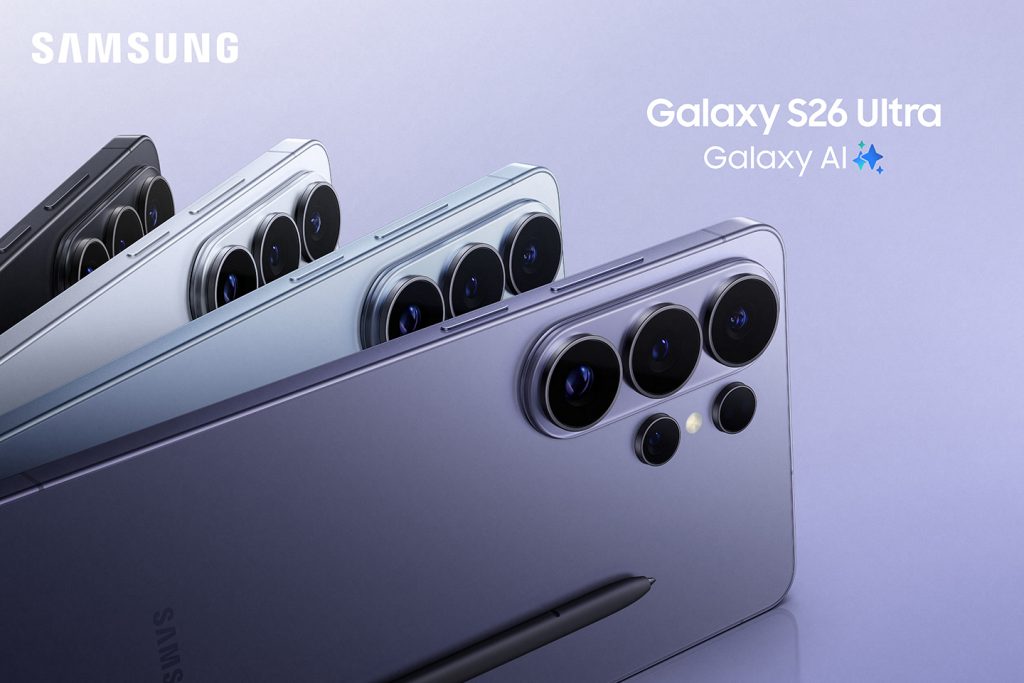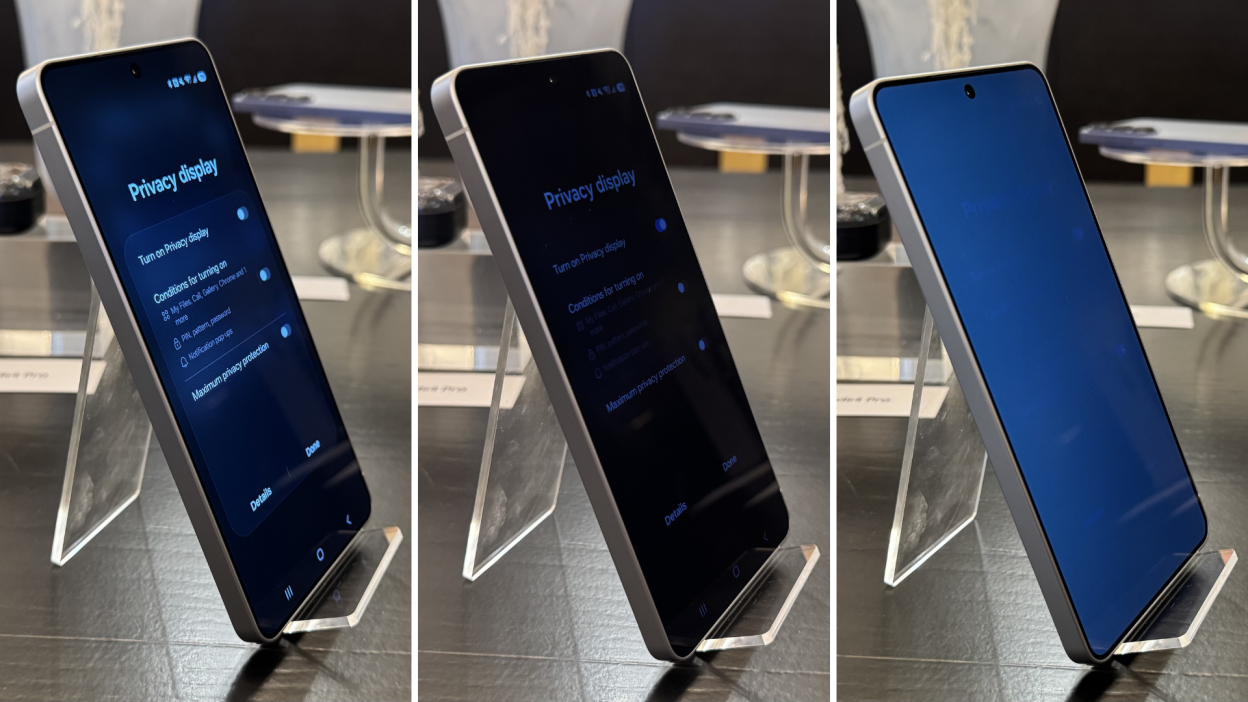
The launch of the latest flagship introduces the Samsung Galaxy S26 Ultra Privacy Display, a world-first in mobile hardware technology. Unlike traditional software filters or stick-on plastic protectors, this system works at the pixel level. It allows users to hide their screen content from prying eyes in public spaces like cafes or trains. Consequently, understanding how to manage this feature is essential for any privacy-conscious user. By controlling how light disperses, the Samsung Galaxy S26 Ultra Privacy Display ensures your data remains visible only to you.
How to Activate the Privacy Settings
To begin using the Samsung Galaxy S26 Ultra Privacy Display, you can access the toggle through the Quick Settings panel. Simply swipe down twice from the top of your screen and tap the Privacy icon. Furthermore, you can automate this process within the main settings menu. Navigate to Settings > Display > Privacy Display to find the auto-activation tools. Specifically, you can set the device to trigger the privacy mode whenever you open banking apps or enter a PIN. This proactive approach ensures the S26 Ultra Privacy Display works exactly when you need it most.
Advanced Customization for Daily Use
The Samsung Galaxy S26 Ultra Privacy Display offers several modes to suit different environments. For instance, “Partial Screen Privacy” only obscures notification pop-ups while keeping the rest of the display clear. Alternatively, “Maximum Privacy Protection” significantly narrows the viewing angle for total discretion in crowded areas. However, keep in mind that these modes may slightly reduce overall screen brightness. Therefore, you should adjust your manual brightness slider to find the perfect balance. Using the S26 Ultra Privacy Display correctly allows you to maintain high visual quality while staying secure.
Integrating with Modes and Routines
For the best experience, integrate the S26 Ultra Privacy Display with your phone’s “Modes and Routines” feature. For example, you can create a routine that activates the privacy shield whenever you connect to a specific public Wi-Fi network. Additionally, the feature supports both portrait and landscape orientations seamlessly. This means your private videos or documents stay hidden even if you rotate the device. Ultimately, the S26 Ultra Privacy Display represents a new standard in mobile security. It empowers users to take full control of their visual privacy without extra accessories.
READ: The Best Combo Bundle in Uganda 2026: Top All-in-One Plans