Resetting your router can be a useful solution if you’re experiencing connectivity issues, slow internet, or other problems with your home network. Whether you need to restart the router or perform a factory reset, follow these steps to restore your network connection.
Step 1: Restarting Your Router
A restart can help resolve many minor connectivity issues. Here’s how to restart your router:
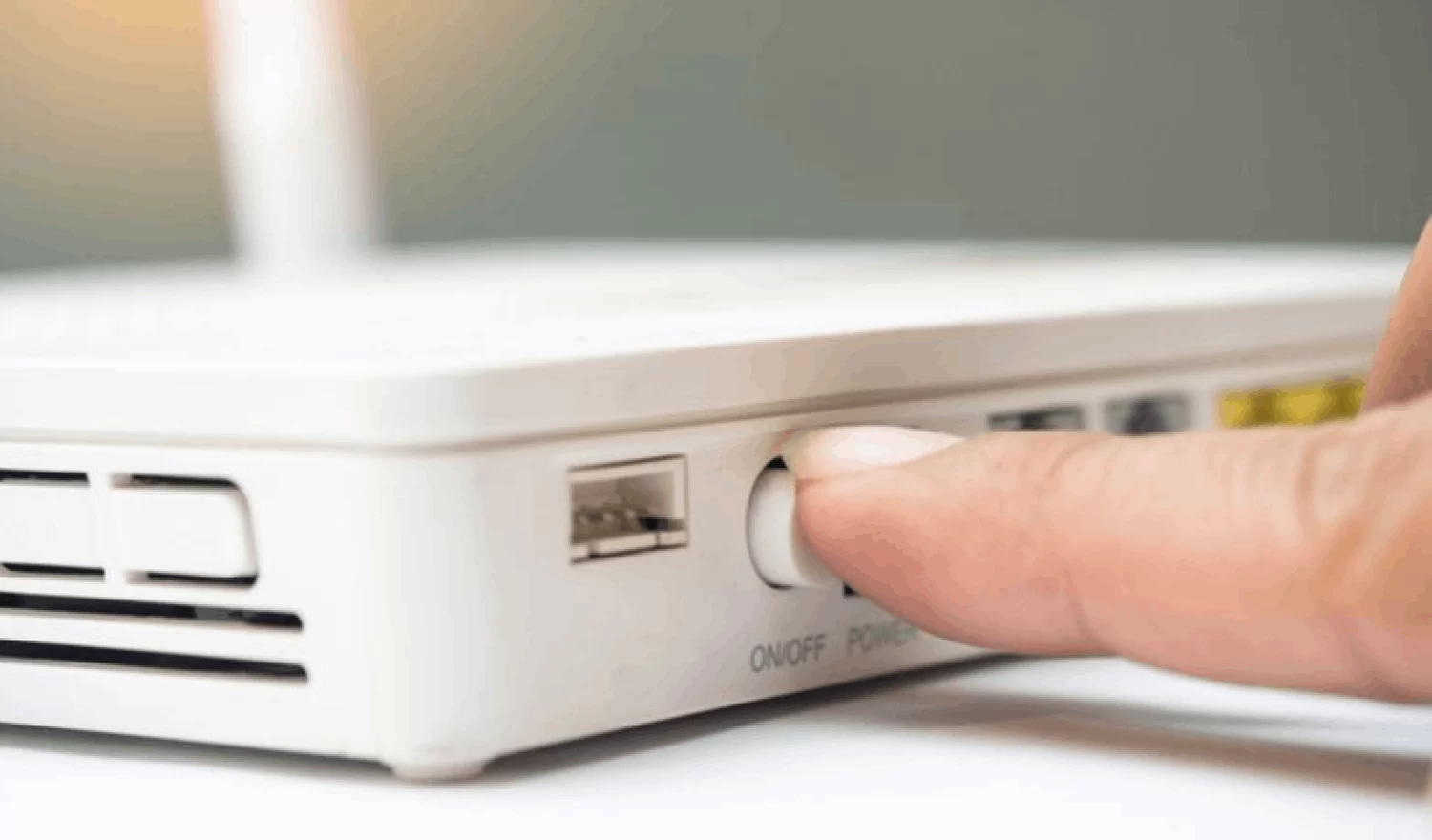
- Unplug the Router: Unplug the power cable from your router. Wait for at least 30 seconds.
- Plug it Back In: Plug the router’s power cable back in and allow it to power on fully.
- Wait for Reconnection: It may take a couple of minutes for your router to reconnect to the network.
Step 2: Factory Reset (If Restart Doesn’t Work)
If restarting doesn’t fix the issue, you may need to perform a factory reset. A factory reset restores the router to its original settings, so any custom configurations (like Wi-Fi name or password) will be erased. Here’s how to do it:
- Locate the Reset Button: Find the small, usually recessed reset button on your router. This is typically located at the back or bottom of the device.
- Press and Hold: Use a paperclip, pin, or similar tool to press and hold the reset button for about 10-15 seconds.
- Wait for the Router to Reset: After holding the button, the router will reboot, and you’ll see the lights flashing as it resets. This may take a few minutes.
Step 3: Reconfigure the Router
Once the router has reset to factory settings, you’ll need to set it up again. This includes:
- Access the Router’s Admin Page: Open a web browser and enter the default IP address (usually 192.168.1.1 or 192.168.0.1) in the address bar.
- Login with Default Credentials: Enter the default username and password, which are often found on a sticker on the router itself (typically something like admin for both fields).
- Change Wi-Fi Settings: Set a new network name (SSID) and password for your Wi-Fi network.
- Update Firmware: Check for any firmware updates in the router’s settings to ensure your router is up to date.
Step 4: Test Your Connection
Once the router is set up, test your internet connection by connecting a device to the network. If everything is working, you’re all set!
READ: How to Choose the Best Fibre Internet for Your Business in Uganda